#
Connect Android phone
We support 2 Android Gateways,
Gateway1: Supports SMS,MMS,USSD. Android 13 or lower is recommended.
Gateway2: Supports only SMS, Android 14 or higher is recommended.
#
Installing from APK?
- Move the APK file to your Android device.
- Access Settings > Security or Privacy on your device.
- Activate Unknown sources to allow installations from non-Play Store sources.
⚠ For Android 15+ users: If Play Protect blocks the APK, temporarily disable it:
- Open Google Play Store → Profile → Play Protect → Settings
- Turn off Scan apps with Play Protect(Re-enable it immediately after installation)
- Use a file manager to find the APK file on your device.
- Tap the APK to begin installation.
- Complete the setup as prompted on-screen.
#
Connect Android phone to send/receive message (Gateway1)
#
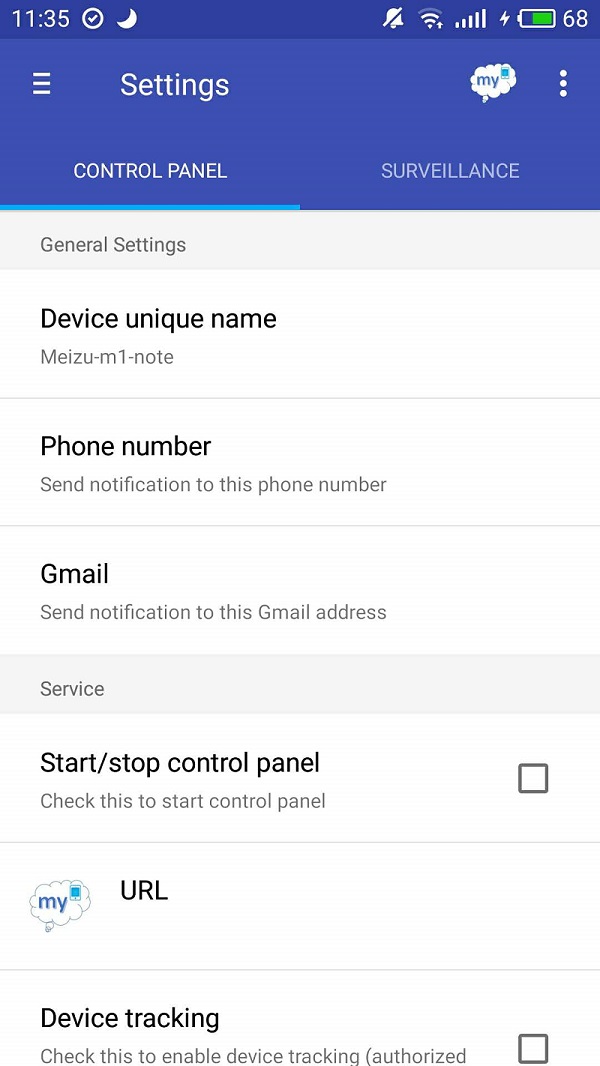
1. Download & install Android Gateway app.
- Attention : Android phone should trun on WIFI then SMS Deliverer is able to connect android phone by local intranet IP address.
#
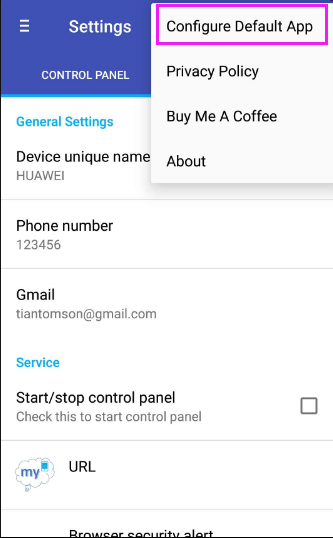
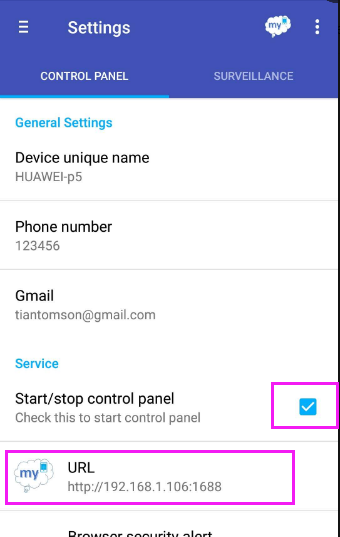
2. Configure android software
Configure software as default message app, Click 'Start/stop control panel' to start working.
#
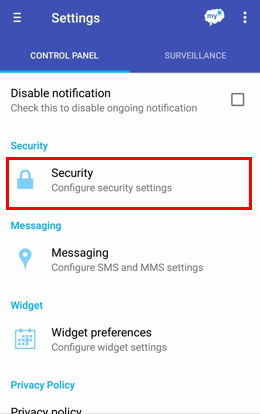
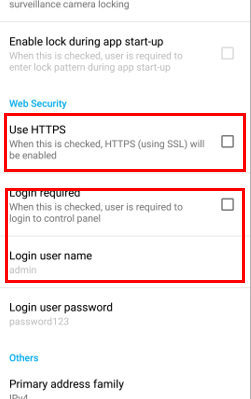
3.(Optional) set user name and password for android phone
- Set user name and password or eanble HTTPS connection to avoid unauthorized client visit the android phone.
#
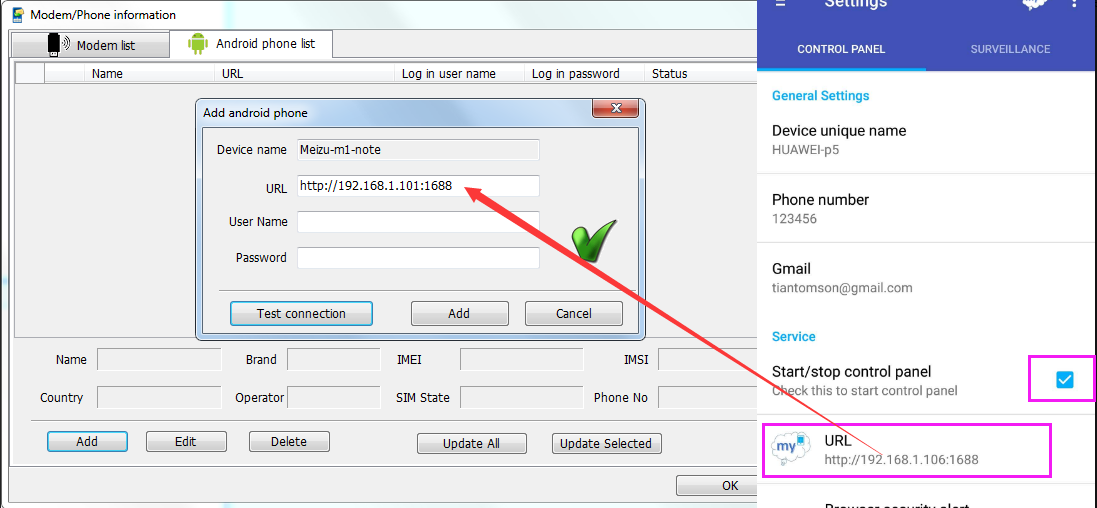
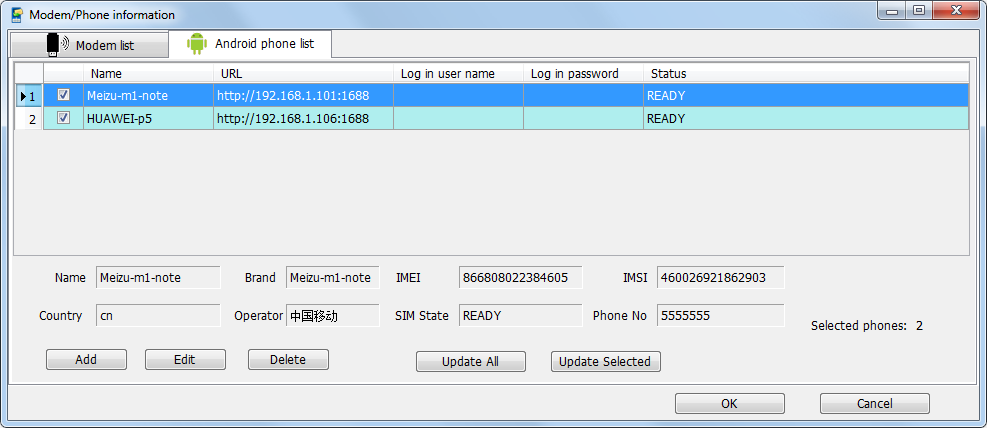
4. Start SMS Deliverer software and run 'Phone detector' to add android phone connection.
Input URL which copy from android phone URL field, click button 'Test connection', if everything are good, software will show android phone name. As default the user name and password are empty, if want enable them, please switch to android phone to define them.
#
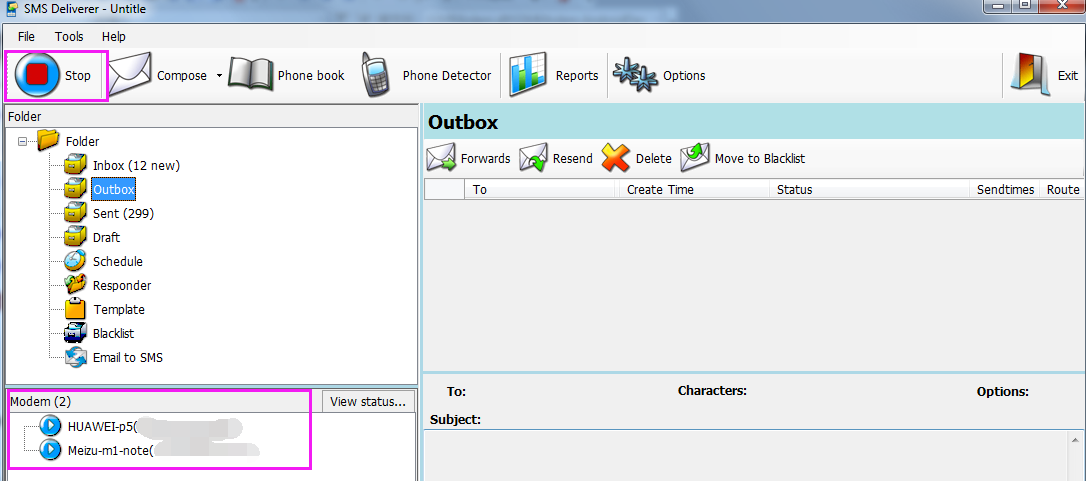
5. Click button 'Start' to start send and receive SMS by android phone.
#
Connect Android phone to send/receive message (Gateway2)
#
1. Download & install Android Gateway app.
- Attention : Android phone should trun on WIFI then SMS Deliverer is able to connect android phone by local intranet IP address.-
#
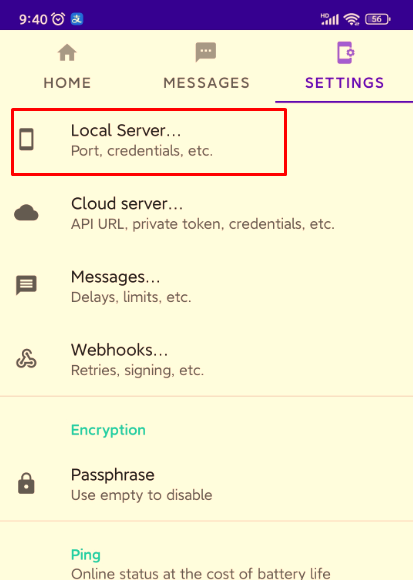
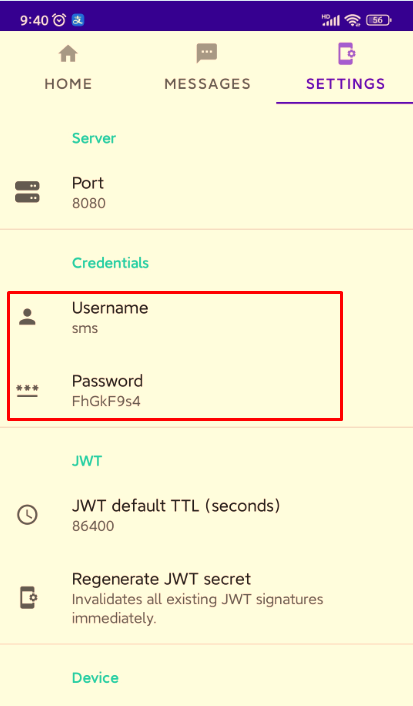
2. Set user name and password for android phone to avoid unauthorized clients.
Click 'Settings->Local Server...'
#
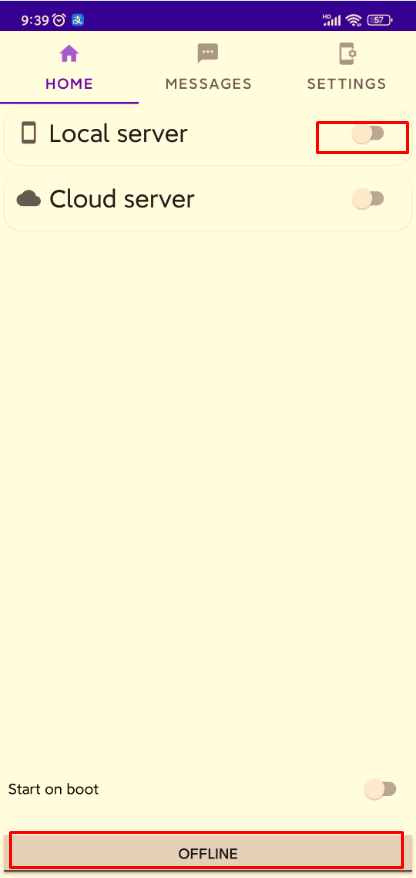
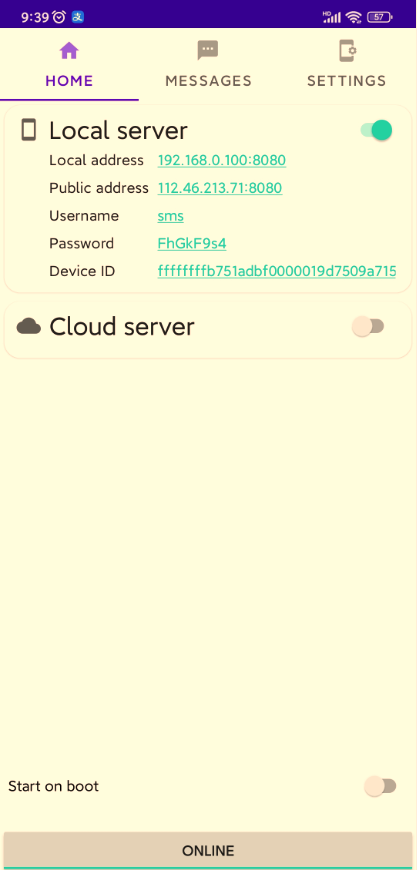
3. Tap 'Local server' then tap 'Offline' to sart working.
#
4. Start SMS Deliverer software and run 'Phone detector' to add android phone connection.
Input URL, username and password, click button 'Test connection', if everything are good, software will show android phone name.
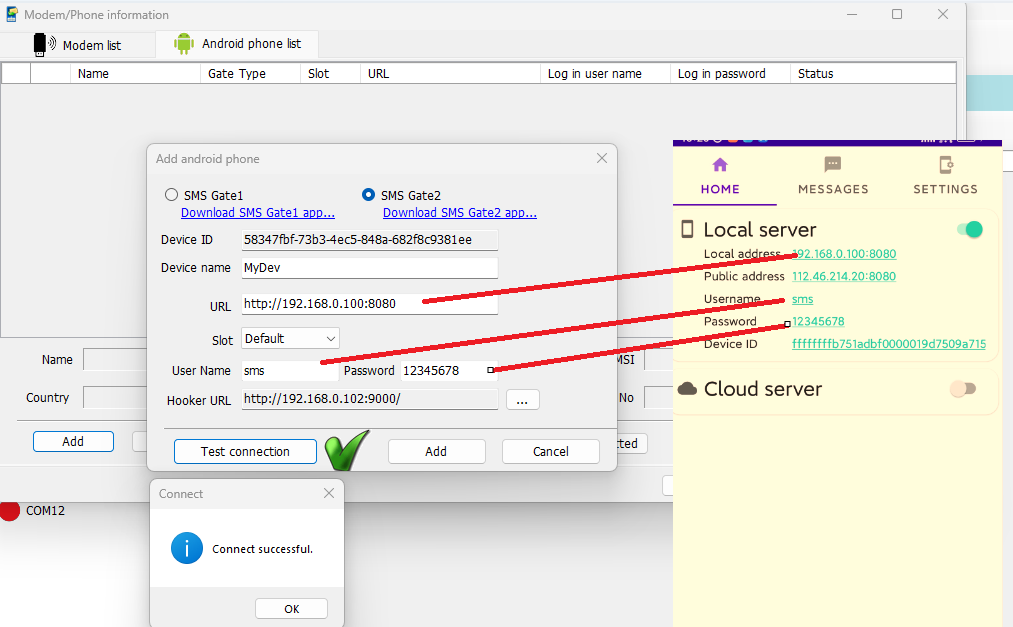
Hooker URL: It's used to Android phone push all incoming messages to PC, just need to keep default value.
#
5. Click button 'Start' to start send and receive SMS by android phone.
Note: normally the Andoid phone and PC should be in a same LAN, if you want to connect Androlid phone by Internet, please install some VPN softwares such as openVpn or Taiscale on both Android and PC.