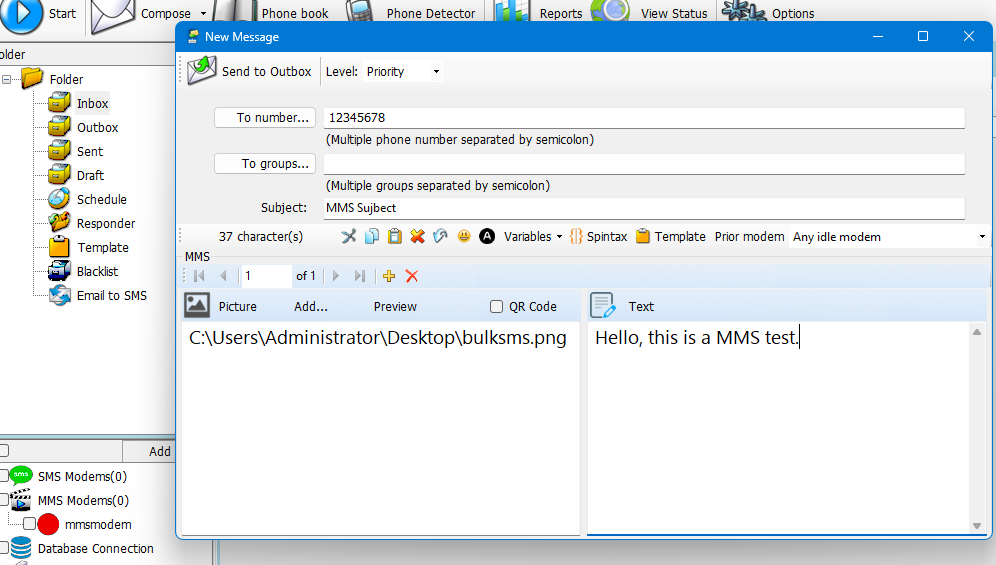
MMS (Multimedia Messaging Service) allows users to send messages containing multimedia content like images, audio, and video, extending beyond the limitations of SMS (Short Message Service) which is limited to text.
Send MMS with an Android phone
Most of carriers block modems for MMS, so it’s strongly recommended that use an Android phone for MMS.
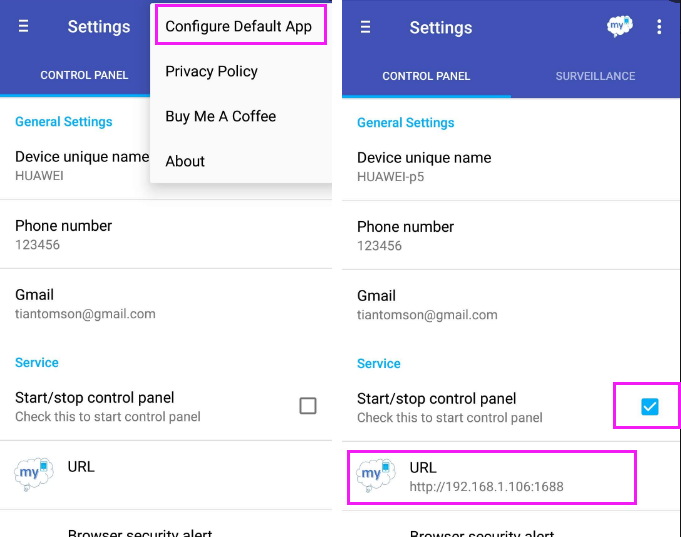
- Install modem Emulator app for Android phone.
- Click menu ‘Configure Default App’ to configure app as default SMS app.
- Click menu ‘Start/stop control panel’ to start working.
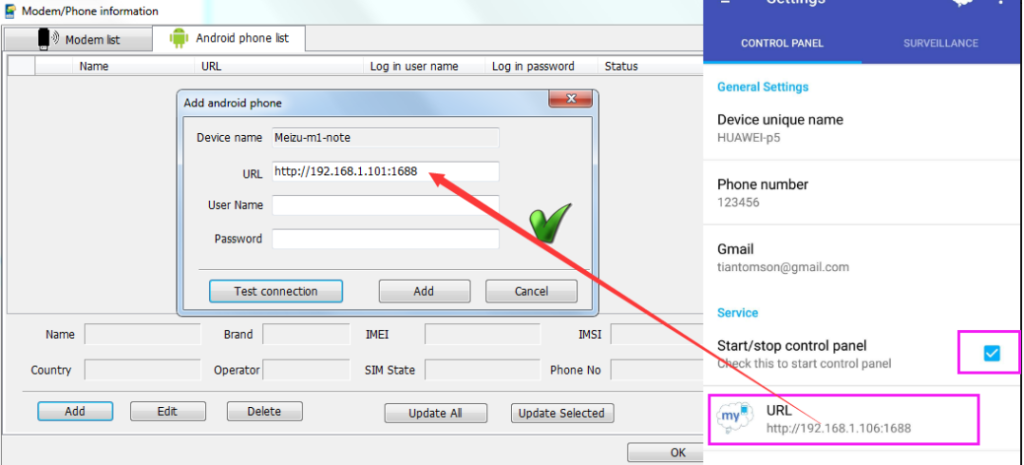
Attention: Please enable WIFI on Android phone then SMS Deliverer is able to connect android phone by local intranet IP address.
2. Start SMS Deliverer software and run ‘Phone detector’ to add android phone connection.
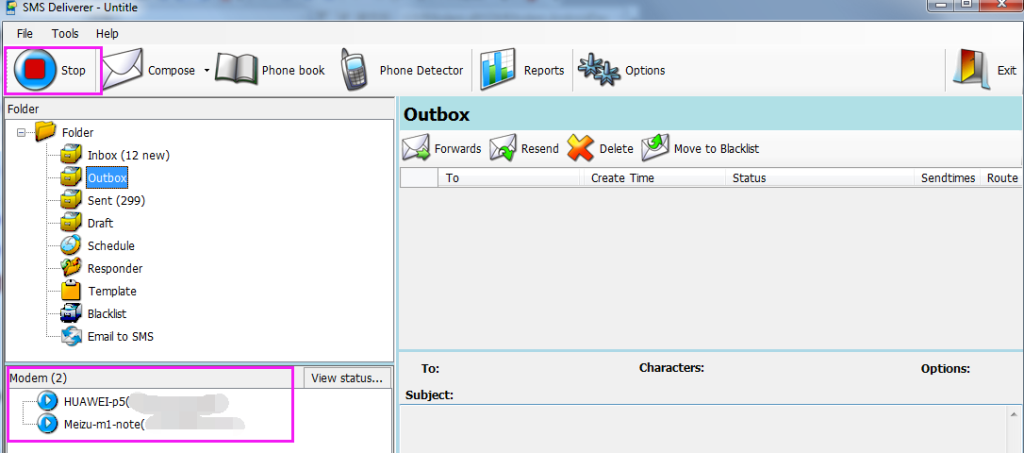
3.Click button ‘Start’ to start send and receive SMS by android phone.
Send MMS with a GSM modem
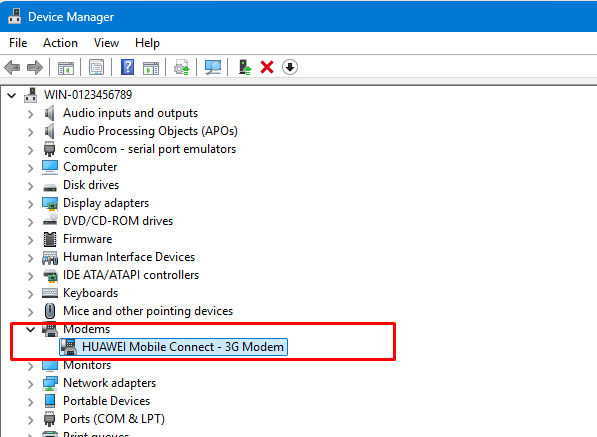
1.Connect a modem to PC and make sure the driver is installed correctly, if everything are good, the modem will be listed in Windows device manager-> modems section
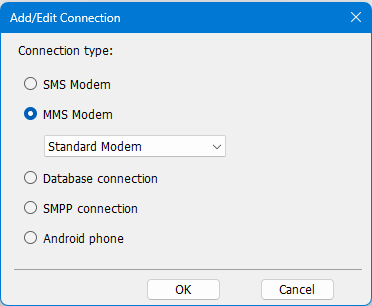
2. Switch to SMS Deliverer click button ‘Phone detector’ to add a MMS modem.
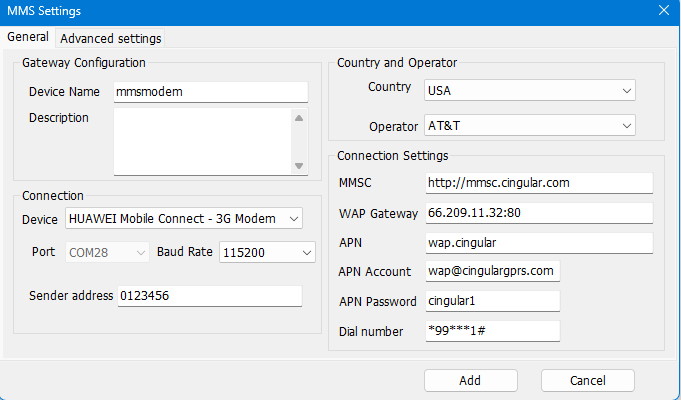
3. Choose correct country and carrier name then click button ‘Add’ then you may compose a MMS to send.