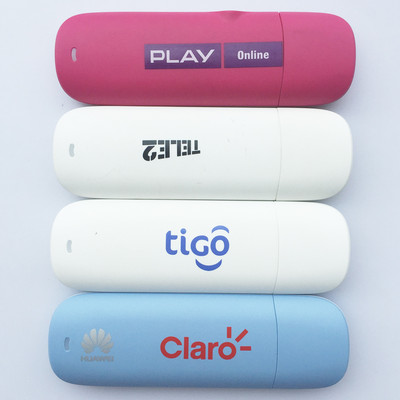
The Huawei E173, E1750, and E1756 are all legacy 3G USB modems (dongles) from the same era, featuring very similar specifications, All three are generally designed for 3G (UMTS/HSPA) and 2G connectivity. These models are considered obsolete for high-speed internet, as they do not support 4G LTE, making them more suitable for basic 3G connectivity or SMS management.
Key Features and Specifications:
- Data Rates: 3G HSDPA up to 7.2 Mbps download, 5.76 Mbps upload.
- Network Bands: 3G UMTS 2100 MHz; 2G GSM/GPRS/EDGE 850/900/1800/1900 MHz.
- Storage: MicroSD card slot, supporting up to 32 GB.
- Interface: USB 2.0.
- Compatibility: Windows and Linux.
How to use?
Step 1: Install driver file
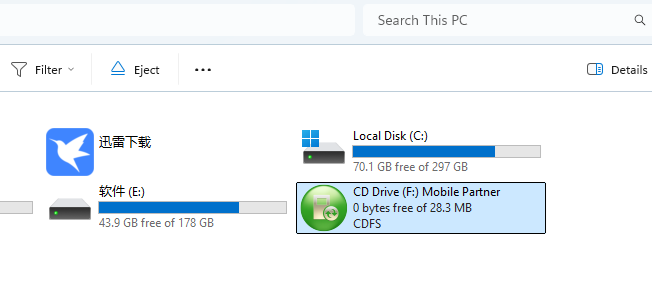
Connecting the dongle to PC, open “File Explore”, an additional CD Driver will be listed, normally it’s name is “Mobile Partner”, open it then click ‘DataCard_Setup.exe’ or ‘DataCard_Setup64.exe’ (for 64bit windows) to install the driver.
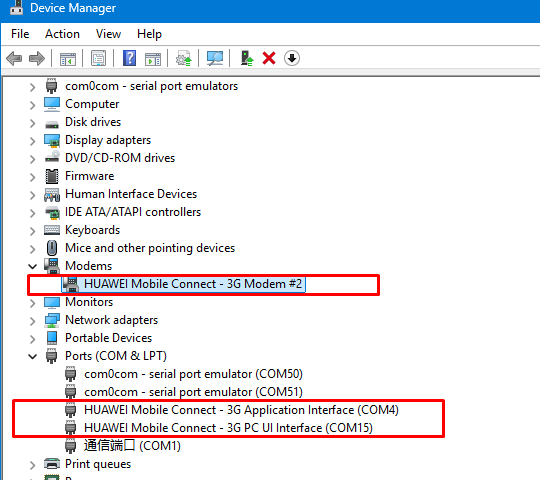
Step 2. Open Winddows Device Manager, normally there are 3 additional COM ports listed.
HUAWEI Mobile Connect – 3G PC UI Interface(recommended) : Most third-party software or SMS gateways will specify using this PC UI port to send and receive messages.
HUAWEI Mobile Connect – 3G Application Interface: A general-purpose COM port for applications to interact with the device hardware, typically for status queries (like signal strength) while the modem is active.
HUAWEI Mobile Connect – 3G Modem: The standard Modem interface used for initiating dial-up internet connections via AT commands (e.g., ATD*99#).
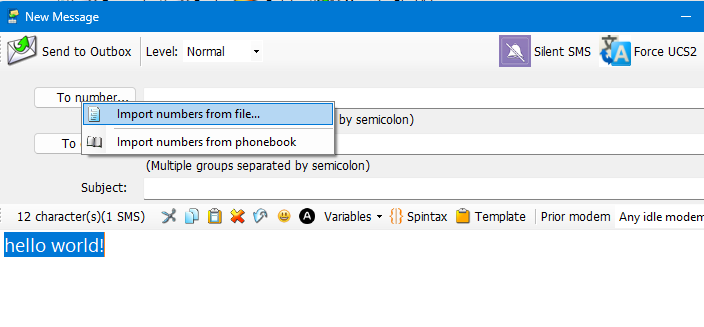
Step 3: Open SMS Deliverer software and run ‘Phone detector’ then check the port which show ‘Ready’.
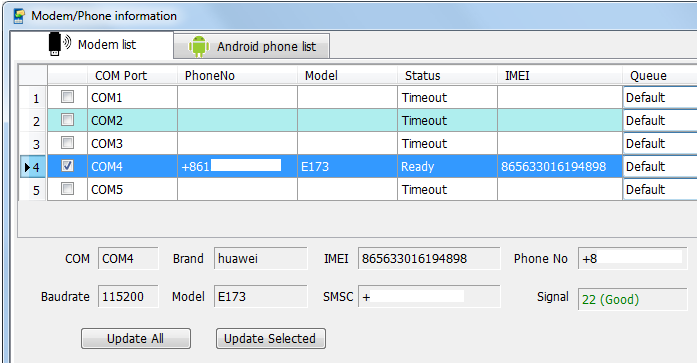
Step 4: Importing numbers and text , Starting SMS maketing now!